Visual Studio Code (VS Code) is one of the most common editors used in GitHub-centered workflows. It combines a lightweight editing experience with strong extensions, an integrated terminal, and a good built-in source control interface.
VS Code is open source and runs on macOS, Linux, and Windows. You can download it from Microsoft’s VS Code setup page.
Why VS Code works well with Git
VS Code is especially useful for Git-based collaboration because it makes several common tasks easier to see:
which files have changed
what changed inside a file
which hunks are staged
when a merge conflict is present
how to switch between editor work and terminal work quickly
For many users, this makes VS Code a comfortable bridge between a graphical workflow and command-line Git.
Source Control view
VS Code comes with built-in Git functionality. One of the most visible features is the Source Control panel shown in Figure 1.
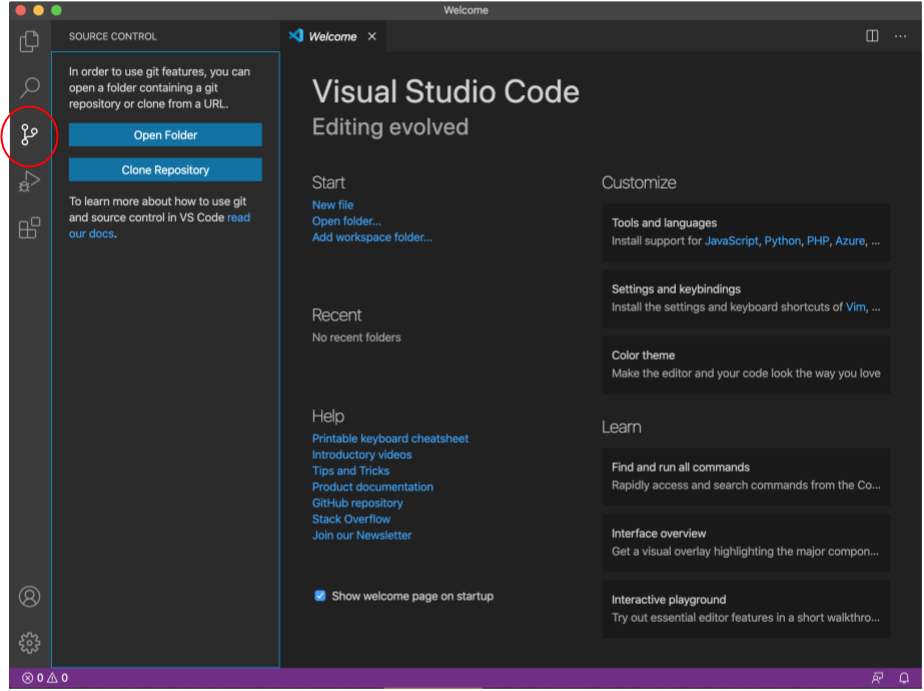
Figure 1:VS Code Source Control Action Bar Icon
From this panel, you can usually:
view modified files
inspect diffs
stage or unstage files
write a commit message
commit changes
pull and push branches
This is convenient, but it still helps to keep an integrated terminal open so you can compare what the GUI shows with git status.
Recommended extensions
VS Code works reasonably well out of the box, but a few extensions can improve the experience.
Useful categories include:
Git-focused extensions for commit history and blame information
language support for the main languages used by the project
Markdown or MyST support for documentation-heavy repositories
For this repository specifically, the MyST extension is helpful when editing the book content.
A practical beginner workflow in VS Code
A simple and reliable pattern is:
open the repository folder in VS Code
keep the integrated terminal visible
use the Source Control panel to inspect changes
use the terminal for commands such as
git status,git fetch,git merge, andgit push
This gives you the best of both worlds: visual diffs and an explicit command-line understanding of the repository state.
Using VS Code as your Git editor
If you want Git to open VS Code when it needs you to edit a commit message or other text, set:
git config --global core.editor "code --wait"The --wait flag tells Git to pause until you close the file in VS Code.
Mergetool and difftool
VS Code can also be configured as a Git merge tool and diff tool. A simple setup looks like this:
[merge]
    tool = vscode
[mergetool "vscode"]
    cmd = code --wait "$MERGED"
[diff]
    tool = vscode
[difftool "vscode"]
    cmd = code --wait --diff "$LOCAL" "$REMOTE"
This allows Git to open VS Code when you want a visual comparison or merge-resolution interface.
Good habits when using VS Code with Git
Use the Source Control panel to inspect changes before committing.
Keep the integrated terminal available for
git statusand other core commands.Review diffs before staging large batches of files.
Be cautious with one-click sync actions if you do not fully understand whether they pull, merge, rebase, or push.
VS Code can make Git feel friendlier, but the most reliable workflows still come from understanding what Git is doing underneath the interface.